Description
BarkingLlama Roulette adds a simple shortcode and REST endpoint that selects a random YouTube video from a configured playlist and embeds it on your site.
Perfect for motivational cards as Shorts, “daily randomness” pages, or any curated playlist you want to keep fresh.
Features:
* Shortcode: [llama_roulette]
* REST endpoint: /wp-json/llama-roulette/v1/random
* Playlist caching via transients to reduce YouTube API calls
* Optional Privacy Enhanced Mode (youtube-nocookie embeds)
* « Start Muted » setting for reliable autoplay
External services
This plugin uses the YouTube Data API v3 (Google) to retrieve videos from the configured YouTube playlist so it can select and display a random video.
What data is sent and when:
* The configured playlist ID (or playlist ID parsed from a provided playlist URL) is sent when the plugin requests playlist items.
* The configured YouTube API key is sent with those API requests for authentication.
* These requests occur when cached playlist data is missing or expired, or when playlist data must be refreshed.
Service provider:
* Google / YouTube Data API v3
Terms of Service and Privacy Policy:
* Google API Services Terms of Service: https://developers.google.com/terms/
* YouTube API Services Terms of Service: https://developers.google.com/youtube/terms/api-services-terms-of-service
* Google Privacy Policy: https://policies.google.com/privacy
Shortcode
Basic:
[llama_roulette]
Available attributes:
* button_label – Custom label for the trigger button (e.g., button_label="Try Luck").
* playlist – Optional YouTube Playlist ID or URL to override the global setting.
* autoplay – Set to 1 to auto-load/play, 0 to wait for click.
* muted – Set to 1 to start muted, 0 for sound (Note: browsers block unmuted autoplay).
* show_title – Set to 1 to show the video title below the player, 0 to hide.
* align – left, center, or right.
* max_width – Any CSS width value (e.g., max_width="800px").
* aspect_ratio – CSS aspect-ratio (e.g., 16/9, 4/3).
* class – Append custom CSS classes.
Example:
[llama_roulette playlist= »PLxxxx » button_label= »Spin! » autoplay= »1″ muted= »1″ show_title= »1″]
REST API
GET /wp-json/llama-roulette/v1/random
Optional query param:
* playlist (Playlist ID or URL) to override the configured playlist for that request
Example:
GET /wp-json/llama-roulette/v1/random?playlist=PLabc123
License
This plugin is licensed under the GPLv2 or later.
Screenshots
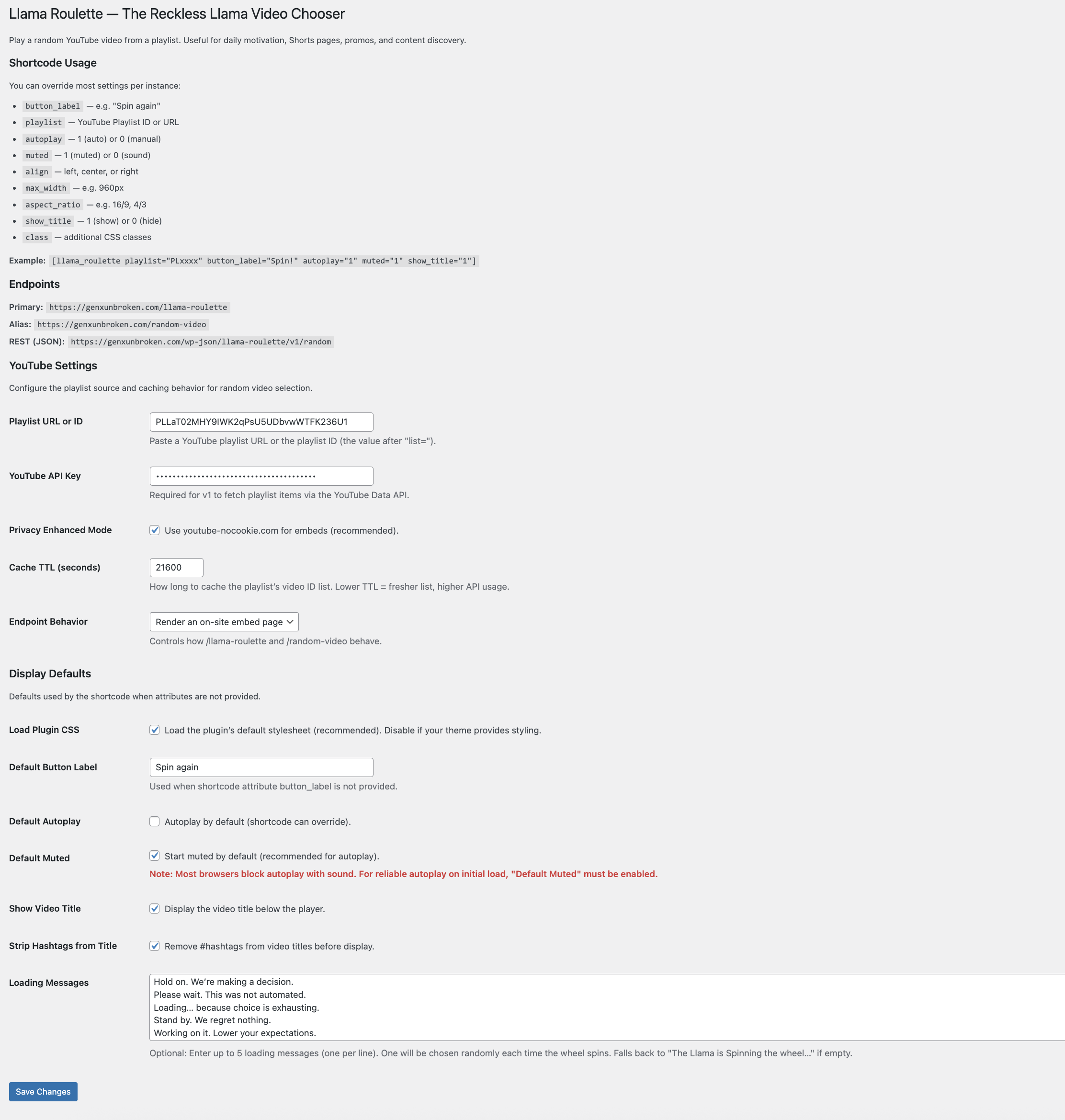
Settings page (playlist, API key, cache, privacy, display settings) 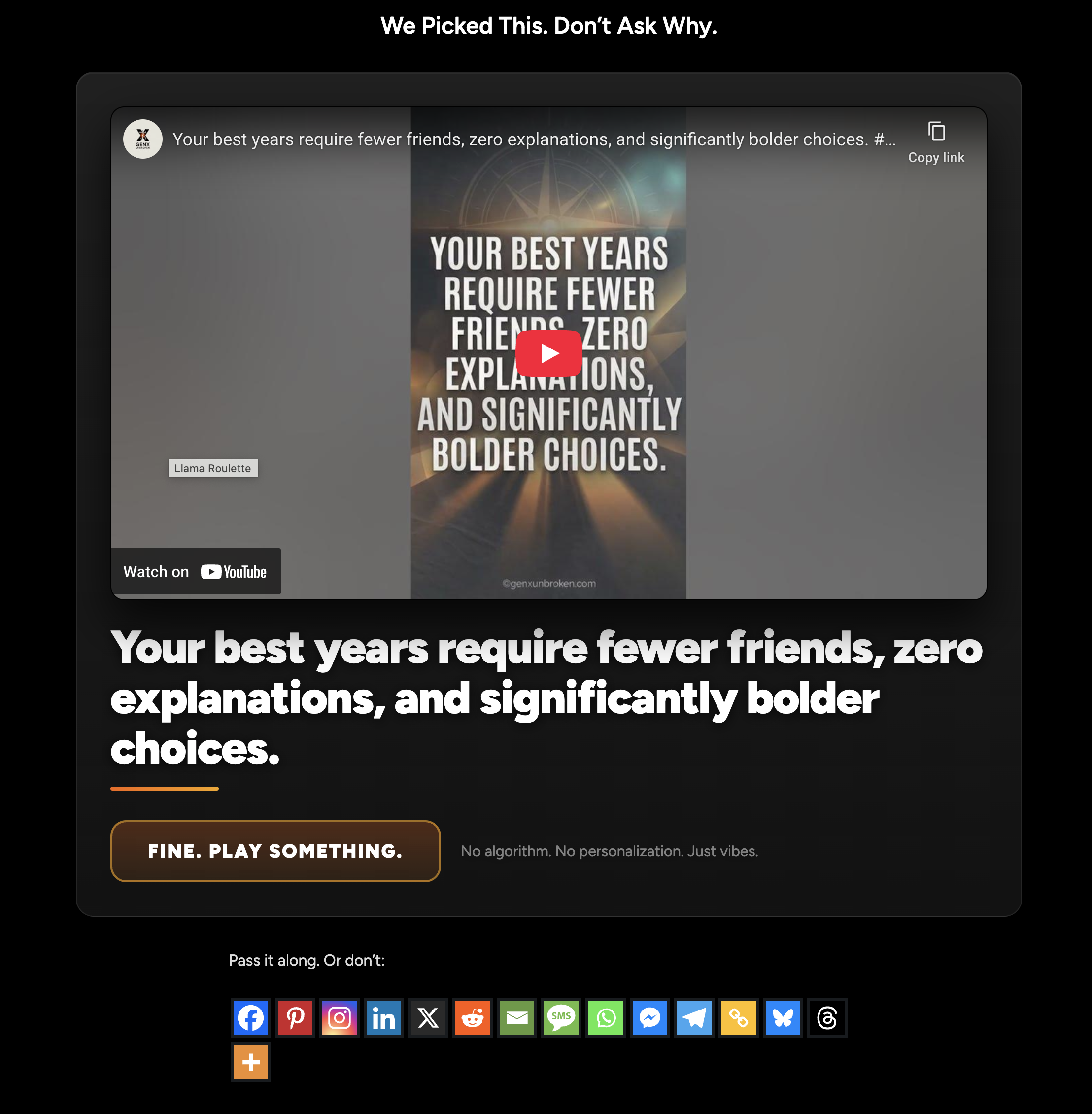
Front-end embed with “Spin again” button and video title
Installation
- Upload the plugin folder to /wp-content/plugins/ or install via the Plugins screen.
- Activate the plugin.
- Go to Settings BarkingLlama Roulette.
- Enter:
- Playlist URL or ID
- YouTube API Key
- Add the shortcode [llama_roulette] to any post or page.
FAQ
-
Do I need a YouTube API key?
-
Yes for v1. BarkingLlama Roulette uses the YouTube Data API to fetch playlist items. The plugin caches results to reduce quota usage.
-
How do I find my Playlist ID?
-
If your playlist URL looks like:
…the playlist ID is the value after « list= ». -
Does it work on mobile?
-
Yes. It uses a standard YouTube embed iframe.
-
How do I use Privacy Enhanced Mode?
-
Enable “Privacy Enhanced Mode” in Settings BarkingLlama Roulette to embed using youtube-nocookie.com.
-
Why does autoplay not work with sound?
-
Modern browsers block videos from autoplaying with sound on initial load unless a user has interacted with the page first. For reliable autoplay, enable the « Default Muted » setting.
-
How do I get a YouTube Data API key?
-
BarkingLlama Roulette uses the YouTube Data API to retrieve videos from your playlist. Google requires an API key for this.
Follow these steps:
-
Go to the Google Cloud Console:
https://console.cloud.google.com/ -
Sign in with the Google account that owns (or can access) the YouTube playlist.
-
Create a new project:
- Click the project dropdown at the top
- Click “New Project”
- Give it any name (for example: “BarkingLlama Roulette”)
- Click Create
-
Enable the YouTube Data API:
- With your project selected, go to:
APIs & Services Library - Search for “YouTube Data API v3”
- Click it, then click “Enable”
- With your project selected, go to:
-
Create an API key:
- Go to:
APIs & Services Credentials - Click “Create Credentials”
- Choose “API key”
- Copy the generated key
- Go to:
-
(Optional but recommended) Restrict the API key:
- In the Credentials screen, click your new API key
- Under “API restrictions”, select “Restrict key”
- Choose “YouTube Data API v3”
- Save changes
-
Paste the API key into WordPress:
- Go to Settings BarkingLlama Roulette
- Paste the key into the “YouTube API Key” field
- Save changes
That’s it. BarkingLlama Roulette will automatically cache playlist data to minimize API usage.
-
Reviews
There are no reviews for this plugin.
Contributors & Developers
“BarkingLlama Roulette” is open source software. The following people have contributed to this plugin.
Contributors
Translate “BarkingLlama Roulette” into your language.
Interested in development?
Browse the code, check out the SVN repository, or subscribe to the development log by RSS.
Changelog
1.0.4
- FIX: Generic bugs
- TESTED: Up to 7.0
1.0.2
- FEATURE: Added « Show Video Title » option in admin settings and shortcode.
- FEATURE: Added
playlistattribute to shortcode for per-instance overrides. - FIX: Improved shortcode initialization and reliability for multiple instances.
- FIX: Added automatic cache refresh when switching to title-inclusive data format.
1.0.1
- SECURITY: Added output escaping for all template variables.
- SECURITY: Improved redirect logic with
wp_safe_redirect. - FIX: Endpoint button label now respects default settings.
- FEATURE: Added « Start Muted » setting for reliable autoplay.
- FEATURE: Added
mutedattribute to shortcode. - FIX: Improved shortcode attribute reliability via data attributes.
1.0.0
- Initial release: shortcode + REST endpoint + playlist caching + privacy mode