

Description
Design slide-in drawers, off-canvas menus, and popup panels that glide in from any edge of the screen – without writing a single line of code.
OffCanvas | Pricing | Support | Demo
Why OffCanvas / Drawer?
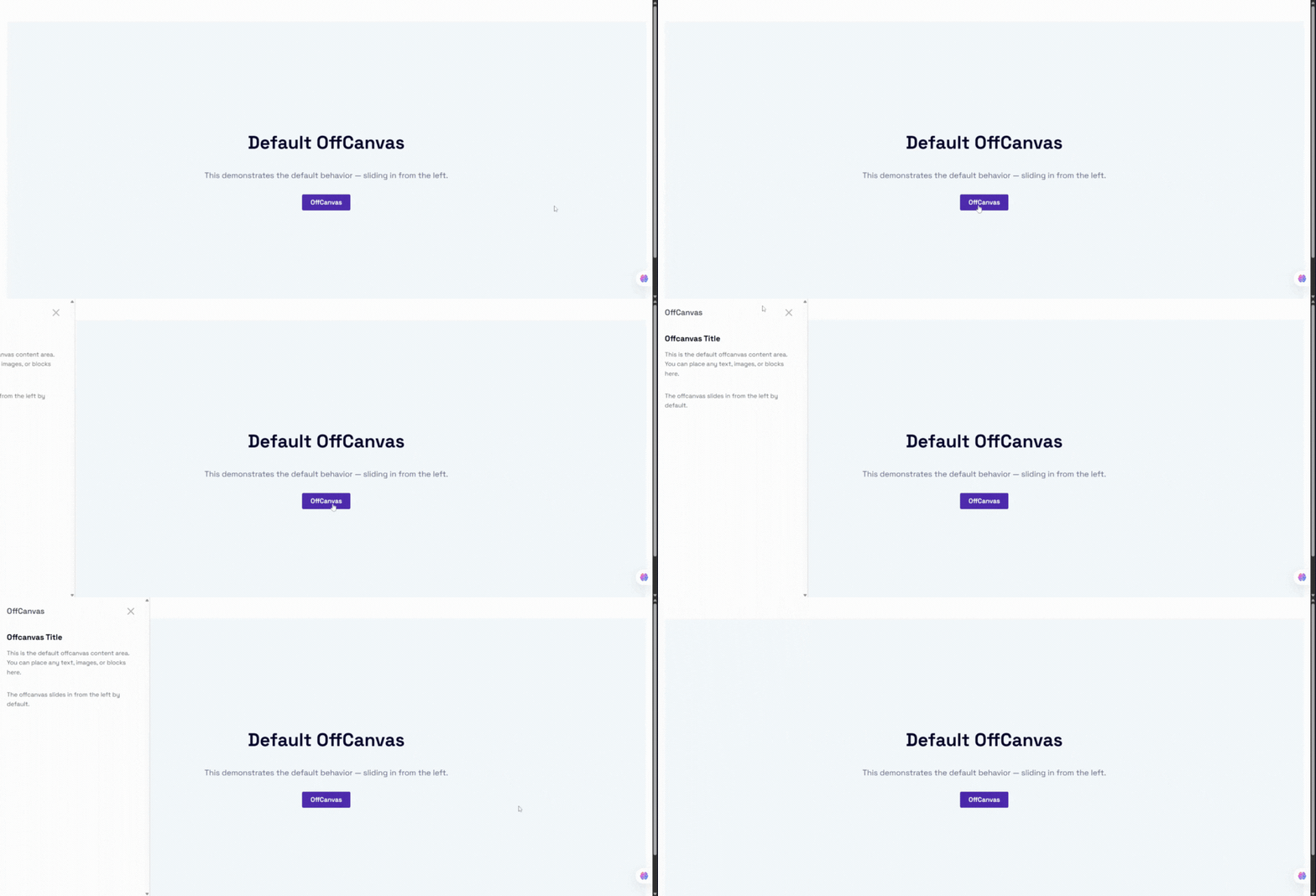
OffCanvas / Drawer is a flexible, highly customizable, and lightweight Gutenberg block that lets you build slide-in drawers, off-canvas navigation menus, and popup panels that slide in from any direction: left, right, top, or bottom.
Built natively for the WordPress Block Editor, it supports InnerBlocks – place any other Gutenberg blocks (paragraphs, images, forms, custom widgets) directly inside the drawer. A custom shortcode generator lets you save layouts and embed them anywhere on your site using the [offcanvas-block id="POST_ID"] shortcode.
The plugin is fully responsive, SEO-friendly, performance-optimized, and built to integrate seamlessly with any WordPress theme – perfect for mobile navigation menus, WooCommerce shopping cart sidebars, newsletters, exit-intent popups, slide-out contact forms, site announcements, and help desks.
Free Features
- Native Gutenberg Block: Full visual integration inside the WordPress Block Editor.
- InnerBlocks Supported: Drop any block inside the drawer, including forms, menus, widgets, and shortcodes.
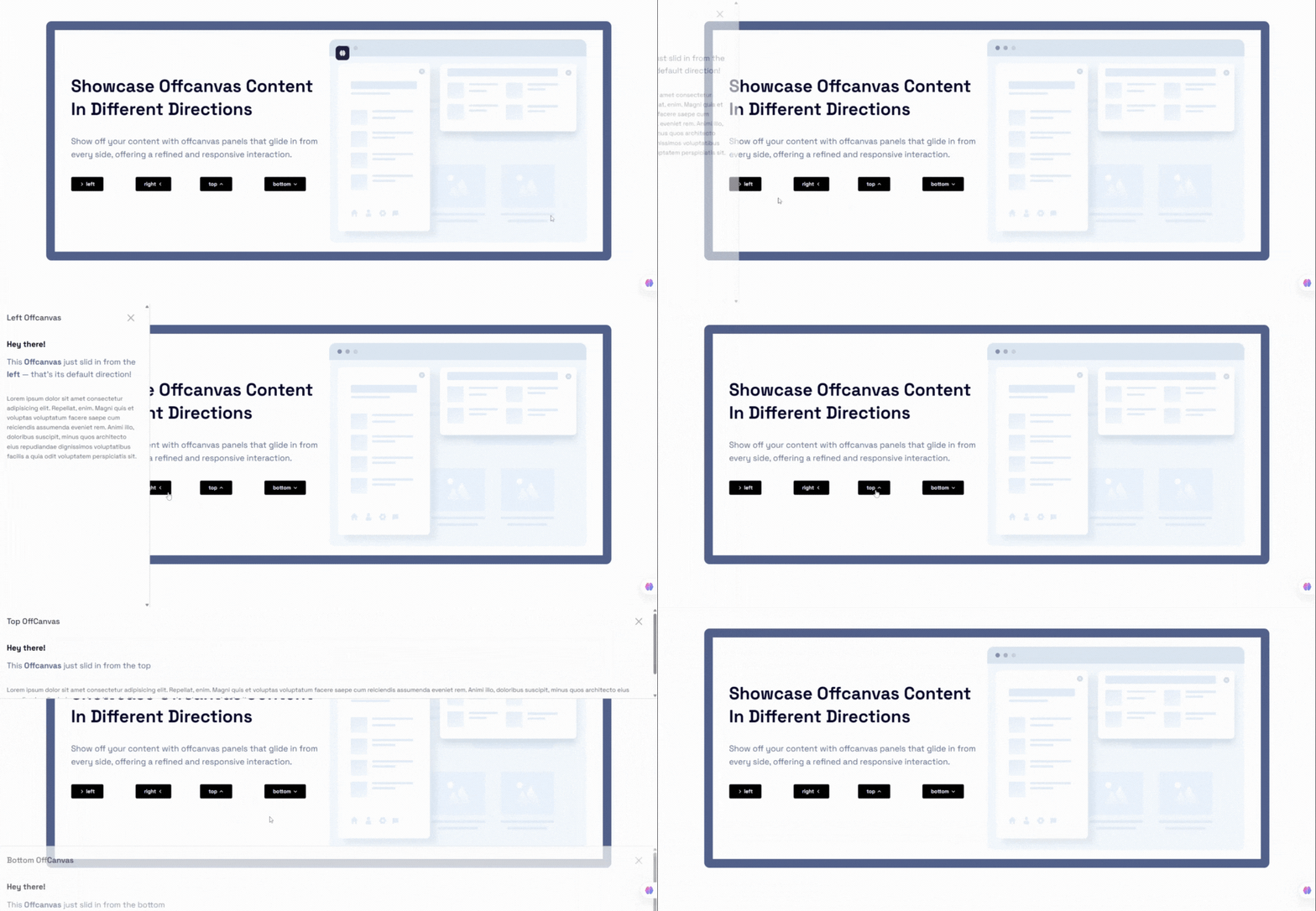
- Four Direction Placements: Position the panel at the Left, Right, Top, or Bottom edge of the screen.
- Shortcode Builder: A dedicated
offcanvas-blockpost type lets you create drawers, save them, and copy the[offcanvas-block id="..."]shortcode from the admin dashboard list. - Default Trigger Button: Built-in trigger button with alignment, typography, colors, ripple click effect, and margin controls.
- Close Button Customization: Color, background, size, shadow, and predefined corner placements (Top-Right, Top-Left, Bottom-Right, Bottom-Left).
- Editable Drawer Header: Customize the header title text, typography, colors, background, and visibility.
- Body Scroll Lock: Prevent background scrolling while the panel is active.
- Standard Backdrop Toggle: Enable a dark overlay backdrop behind the active panel.
Pro Version
Upgrade to OffCanvas Pro to unlock advanced targeting, styling, and behavior controls:
- Floating Action Button (FAB) Trigger: Corner anchor placements, custom absolute positioning with drag-and-drop editor control, X/Y offsets, pulse animations, shadows, hover transitions, and rotation angle.
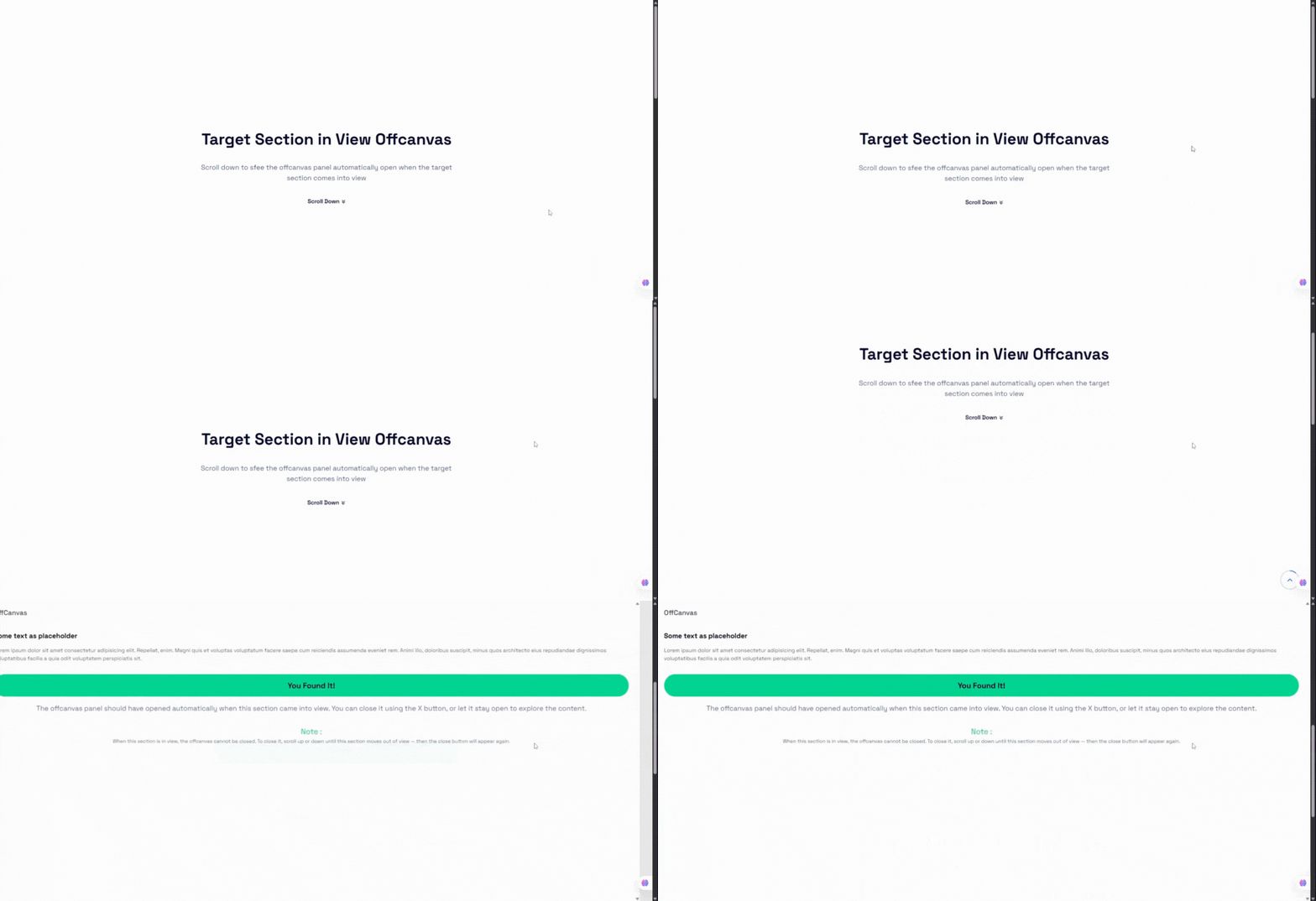
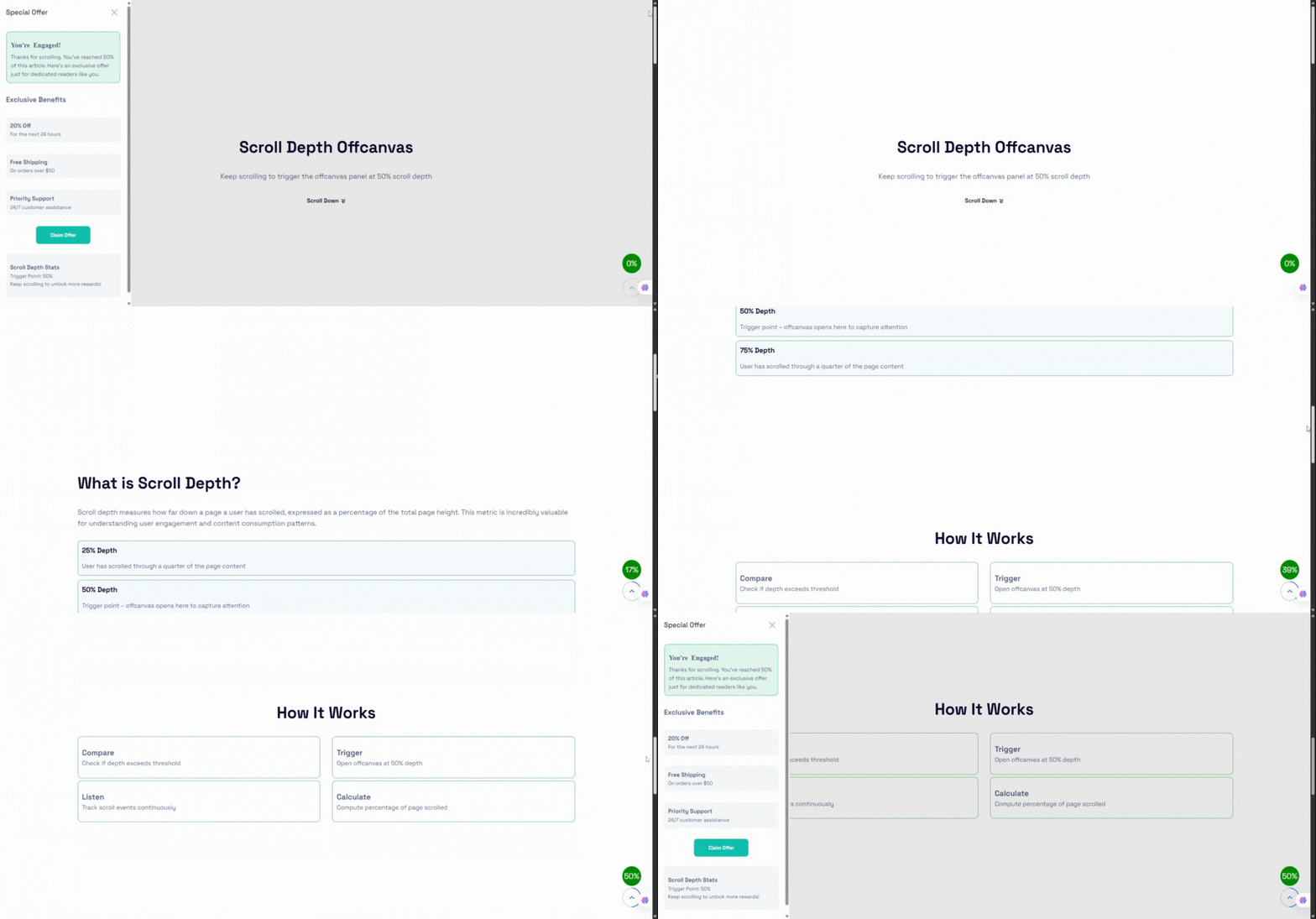
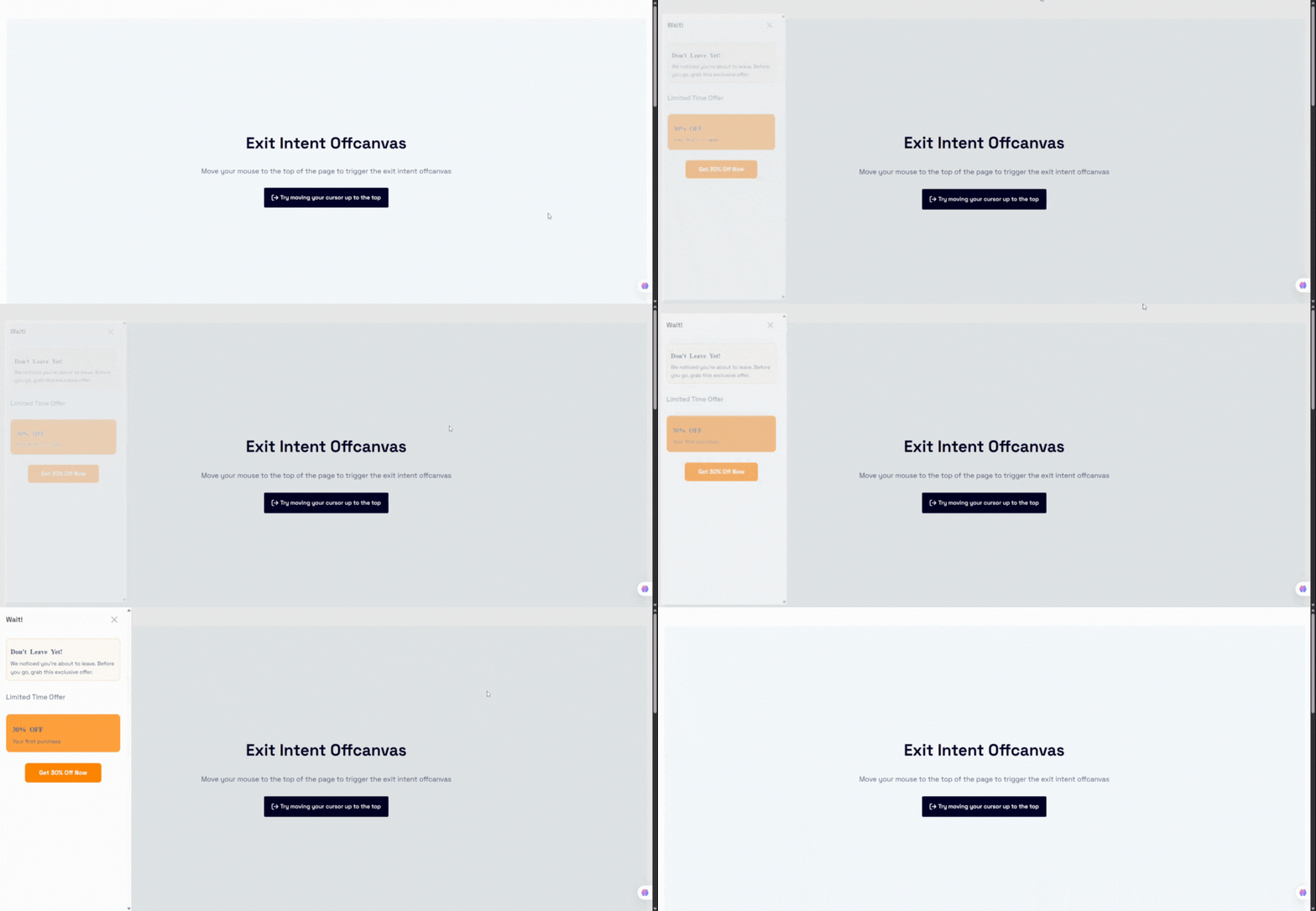
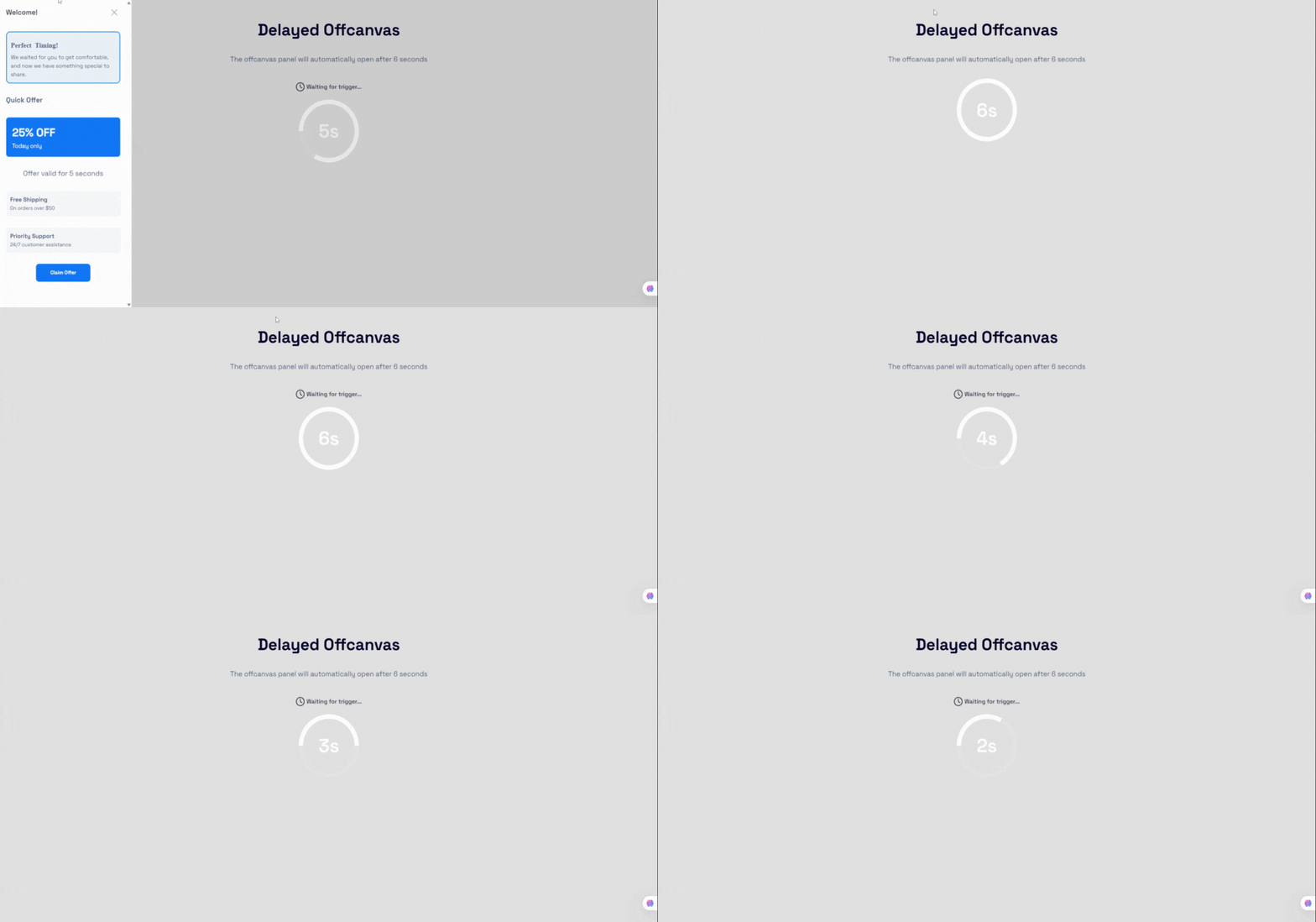
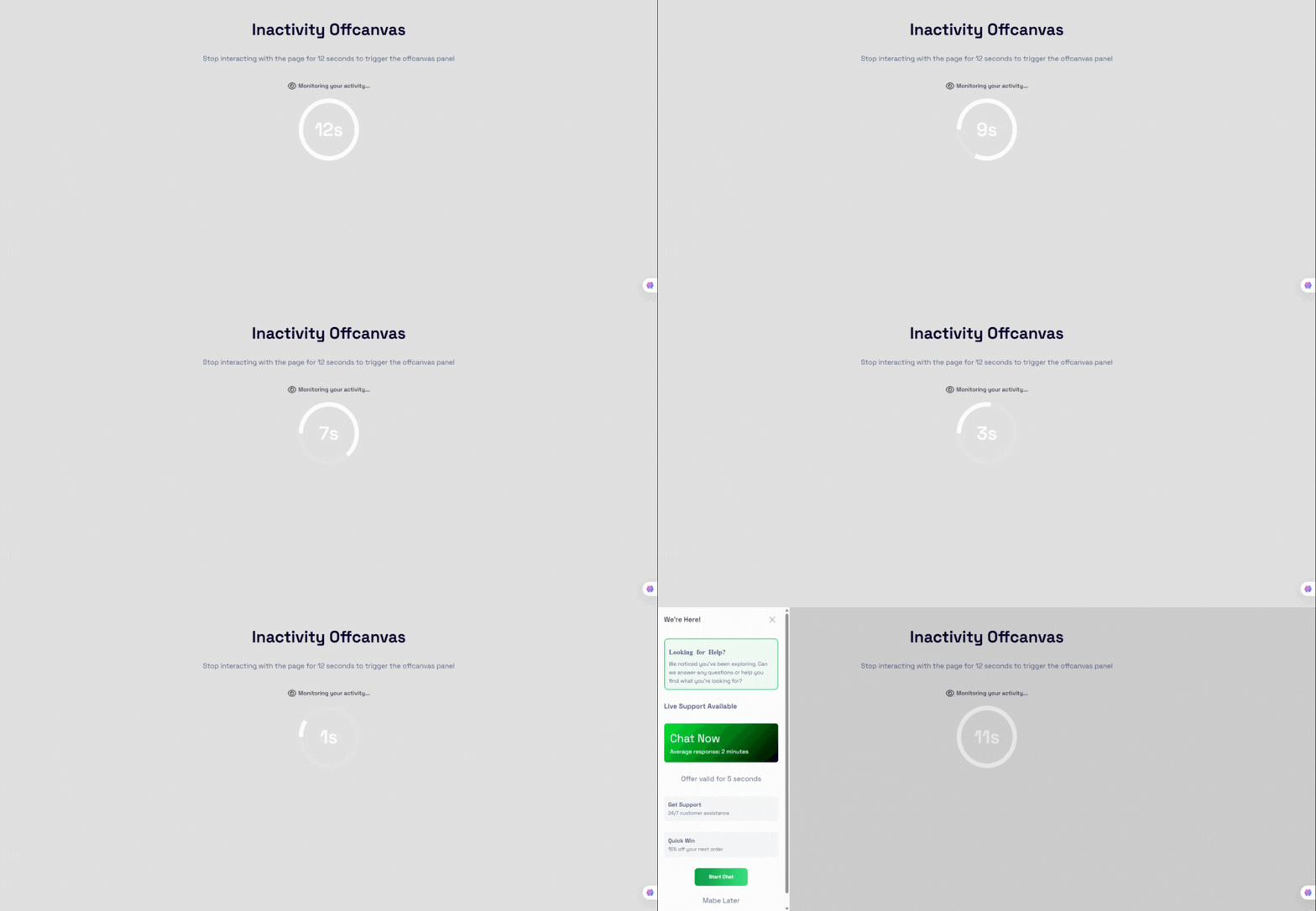
- Smart Auto Triggers: Exit-intent detection, time delay, scroll depth, target-section-in-view, and inactivity triggers.
- Trigger Frequency Controls: Show Always, Once per session, or Once per day to avoid visitor frustration.
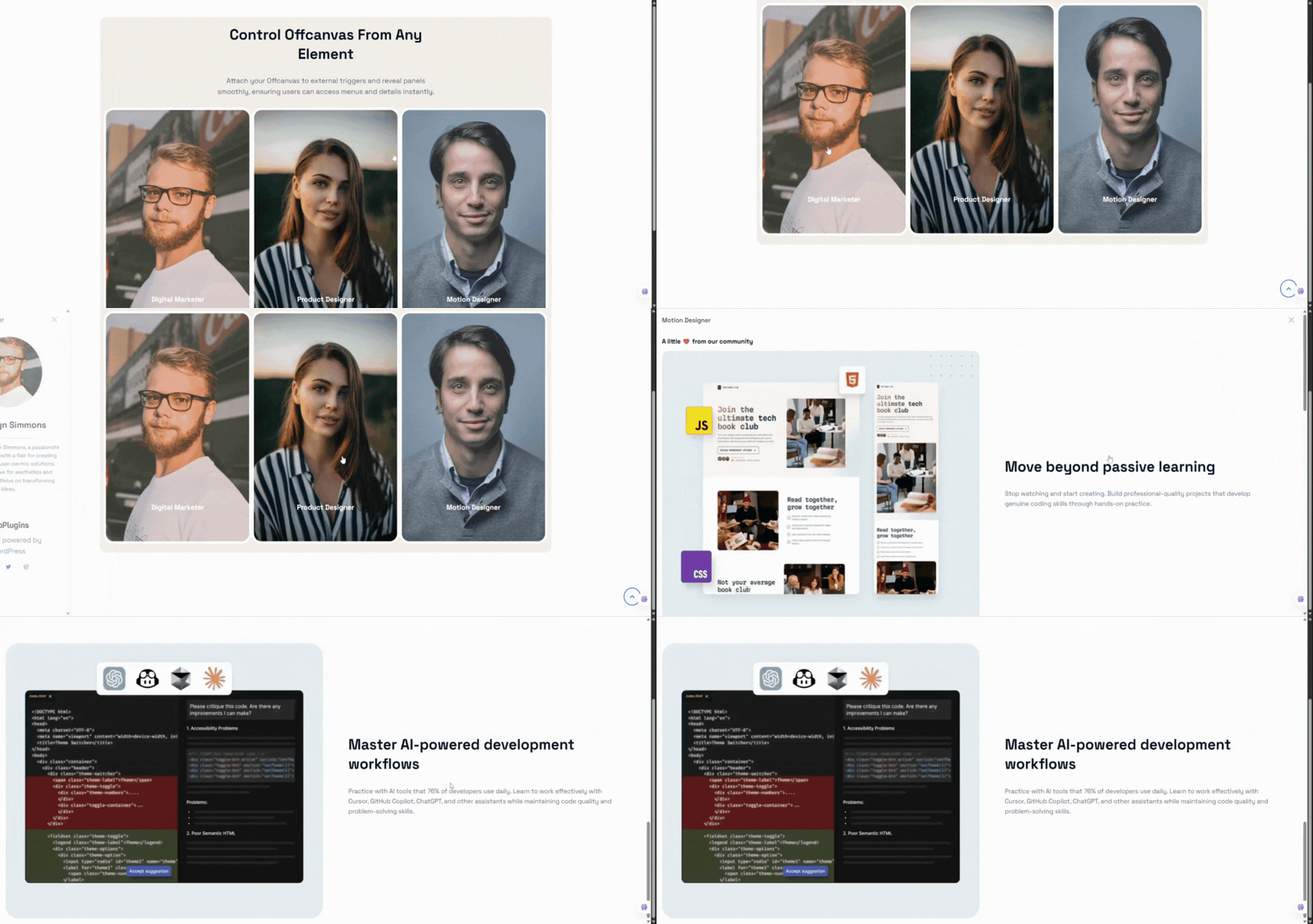
- External Custom Trigger: Bind the drawer to any link, menu item, or button via its CSS class or ID (e.g.
.my-custom-button), with the option to hide the default trigger. - Premium Transitions: Slide, Fade, Push, Reveal, Zoom, Flip, and Bounce effects with configurable duration (100ms–5000ms) and easing presets.
- Responsive Mobile Optimizations: Mobile-specific placement and slide direction, plus swipe-to-open and swipe-to-close touch gestures.
- Premium Design Customization: Device-specific panel dimensions, backdrop color/opacity/blur (0–30px), custom SVG close icons, and advanced borders and hover shadows.
How to Use – Quick Start
- Open the Gutenberg editor on any page, post, or template.
- Click the + icon (Add Block) and search for OffCanvas.
- Insert the block and configure position, trigger, and styling in the inspector sidebar.
- Fill the content area with any Gutenberg blocks and publish.
- Optional: create a drawer under the offcanvas-block post type and place it anywhere with the
[offcanvas-block id="..."]shortcode.
Use Cases
- Mobile Navigation Menus: Slide-out menus that feel native on any device.
- WooCommerce Cart Sidebars: Put a cart block inside the drawer for a mini-cart experience.
- Newsletters & Popups: Exit-intent and scroll-triggered signup panels (Pro).
- Contact Forms & Help Desks: Slide-out forms and support panels available on every page.
- Announcements: Site-wide notices that don’t interrupt the page layout.
Screenshots
Blocks
This plugin provides 1 block.
- OffCanvas Display content box from the left, right, or bottom edge of the viewport
Installation
From your WordPress dashboard (recommended):
- Navigate to Plugins Add New.
- Search for « OffCanvas Block ».
- Click Install Now, then Activate.
- Add the OffCanvas block in the Gutenberg editor.
Manual installation:
- Download the plugin ZIP file from the WordPress Plugin Directory.
- Log in to your WordPress admin dashboard and go to Plugins Add New Upload Plugin.
- Choose the ZIP file, upload, and click Activate.
- Alternatively, upload the plugin folder to the
/wp-content/plugins/directory and activate it from the Plugins menu.
FAQ
-
Does this block work with Full Site Editing (FSE)?
-
Yes! OffCanvas Block is fully compatible with block-based themes and FSE templates, headers, footers, and page layouts.
-
Can I use the OffCanvas drawer as a WooCommerce mini-cart?
-
Yes. You can insert the WooCommerce Cart block (or any cart block/shortcode) inside the OffCanvas content area and use the CPT shortcode to trigger it from your main menu cart button.
-
In the Pro version, you can assign a custom class (e.g.,
open-my-drawer) to your navigation menu item in WordPress, and enter that selector (.open-my-drawer) in the Custom Trigger Selector setting. -
Can I limit how often the popup triggers appear to a single user?
-
Yes. The Pro version includes a Smart Trigger Frequency control, allowing you to limit trigger appearances to « Once per session » or « Once per day » utilizing local storage and session storage.
-
What happens if I have multiple OffCanvas blocks on the same page?
-
The plugin handles multiple instances perfectly. Each block generates its own unique wrapper class and isolated trigger events. In version 2.0.4+, smart triggers also use block-specific storage keys to prevent collisions.
-
Which blocks can I place inside the drawer?
-
Any Gutenberg block – paragraphs, images, forms, menus, sliders, newsletters, widgets, shortcodes, and third-party plugin blocks are all supported through InnerBlocks.
-
Yes. The Pro version’s Smart Auto Triggers can open the panel on exit intent, after a time delay, at a scroll depth percentage, when a target section scrolls into view, or after user inactivity.
-
Can I reuse the same drawer on multiple pages?
-
Yes. Save your drawer with the shortcode builder and embed it anywhere using the
[offcanvas-block id="POST_ID"]shortcode.
Reviews

Contributors & Developers
“OffCanvas / Drawer – add sleek slide-in panels to any page” is open source software. The following people have contributed to this plugin.
Contributors


Translate “OffCanvas / Drawer – add sleek slide-in panels to any page” into your language.
Interested in development?
Browse the code, check out the SVN repository, or subscribe to the development log by RSS.
Changelog
2.0.5 (23 May, 2026)
- Added device-specific drawer positions for mobile devices.
- Added Floating Action Button (FAB) trigger system with advanced styling and positioning controls.
- Added mobile swipe gesture support for opening and closing drawers.
- Added independent slide directions for mobile devices.
- Added device-specific smart auto trigger controls for mobile devices.
- Added customizable Z-index controls for drawer panels and backdrops.
- Added advanced backdrop styling controls including blur and opacity support.
- Improved Gutenberg editor dimension controls for mobile positions.
- Fixed smart trigger frequency handling for delay-based triggers.
- Fixed multi-instance smart trigger conflicts on the same page.
- Fixed manual panel closing restrictions when observed elements are visible.
2.0.4 (07 Apr, 2026)
- Fix: Resolved license activation check issue by improving class existence validation.
- Fix: Fixed broken link in the upgrade modal.
- Update: Improved Inspector Controls for a more intuitive and user-friendly experience.
2.0.3 (22 Feb, 2026)
- Update: Redesigned and modernized admin dashboard interface.
2.0.2 (17 Feb, 2026)
- New: Added contextual info notes to explain advanced settings and features.
- New: Introduced new popup animation types: Zoom, Flip, and Bounce.
- New: Added Backdrop blur control support
- New: Added Configurable animation duration(ms)
- New: Added Animation easing presets
- Update: Improved validation for custom trigger and smart trigger selectors (class/ID input).
- Update: Enhanced user guidance for Custom Trigger and Smart Auto Trigger options.
- Fix: Prevented invalid selector errors from breaking the editor.
- Refactor: Removed unnecessary and duplicate logic to improve performance and maintainability.
2.0.1 (02 Jan, 2026)
- New: Added ripple effect support to the trigger button.
- New: Added support for custom close button icons and position controls.
- New: Extended popup header options with background control, visibility toggle, and title position settings.
- Update: Renamed Trigger Button PanelBody Title for better clarity.
- Update: Moved trigger button alignment control to block settings.
2.0.0 – 26 Nov 2025
Major Upgrade: New interaction system, smart triggers, design controls, and improved UI/UX.
1.0.1 – 30 Sep 2024
- Fix: Close button icon visibility.
1.0.0
- Initial Release.